.NET Framework and Architecture

This article will help your in understanding .NET and .NET architecture.
 
What is the .NET Framework?
 
The .NET Framework is a new and revolutionary platform created by Microsoft for developing applications.  
  • It is a platform for application developers.
  • It is a Framework that supports Multiple Language and Cross language integration.
  • IT has IDE (Integrated Development Environment).
  • Framework is a set of utilities or can say building blocks of your application system.
  • .NET Framework provides GUI in a GUI manner.
  • .NET is a platform independent but with help of Mono Compilation System (MCS). MCS is a middle level interface.
  • .NET Framework provides interoperability between languages i.e. Common Type System (CTS) .
  • .NET Framework also includes the .NET Common Language Runtime (CLR), which is responsible for maintaining the execution of all applications developed using the .NET library.
  • The .NET Framework consists primarily of a gigantic library of code.

Definition: A programming infrastructure created by Microsoft for building, deploying, and running applications and services that use .NET technologies, such as desktop applications and Web services.
 

Cross Language integration

 
You can use a utility of a language in another language (It uses Class Language Integration).
 
.NET Framework includes no restriction on the type of applications that are possible. The .NET Framework allows the creation of Windows applications, Web applications, Web services, and lot more.
 
The .NET Framework has been designed so that it can be used from any language, including C#, C++, Visual Basic, JScript, and even older languages such as COBOL.
 

Difference between Visual Studio and Visual Studio .NET

 
Visual Studio
Visual Studio
It is object based
It is object oriented
Internet based application
- Web Application
- Web services
- Internet enable application
- Third party API
- Peer to peer Application
All developing facilities in internet based application
Poor error handling Exception/Error
Advance error handler and debugger
Memory Management System Level Task
Memory Management Application Domain with help of GC (Garbage Collector)
DLL HELL
VS .NET has solved DLL HELL Problem
 

Simple explanation of definition used in the above comparision:


Web Application

 
All websites are example of web application. They use a web server.
 

Internet Enabled Application

 
They are desktop application. Yahoo messenger is an example of desktop application.
 

Peer to Peer

 
Communication through computers through some system.
 

Web Services

 
It doesn't use web-based server. Internet payment systems are example of web services.
 

DLL Hell

 
"DLL Hell" refers to the set of problems caused when multiple applications attempt to share a common component like a dynamic link library (DLL) or a Component Object Model (COM) class.
 
The reason for this issue was that the version information about the different components of an application was not recorded by the system. (Windows Registry cannot support the multiple versions of same COM component this is called the dll hell problem.)
 
.Net Framework provides operating systems with a Global Assembly Cache (GAC). This Cache is a repository for all the .Net components that are shared globally on a particular machine. When a .Net component is installed onto the machine, the Global Assembly Cache looks at its version, its public key, and its language information and creates a strong name for the component. The component is then registered in the repository and indexed by its strong name, so there is no confusion between different versions of the same component, or DLL.
 

Architecture of .NET Framework
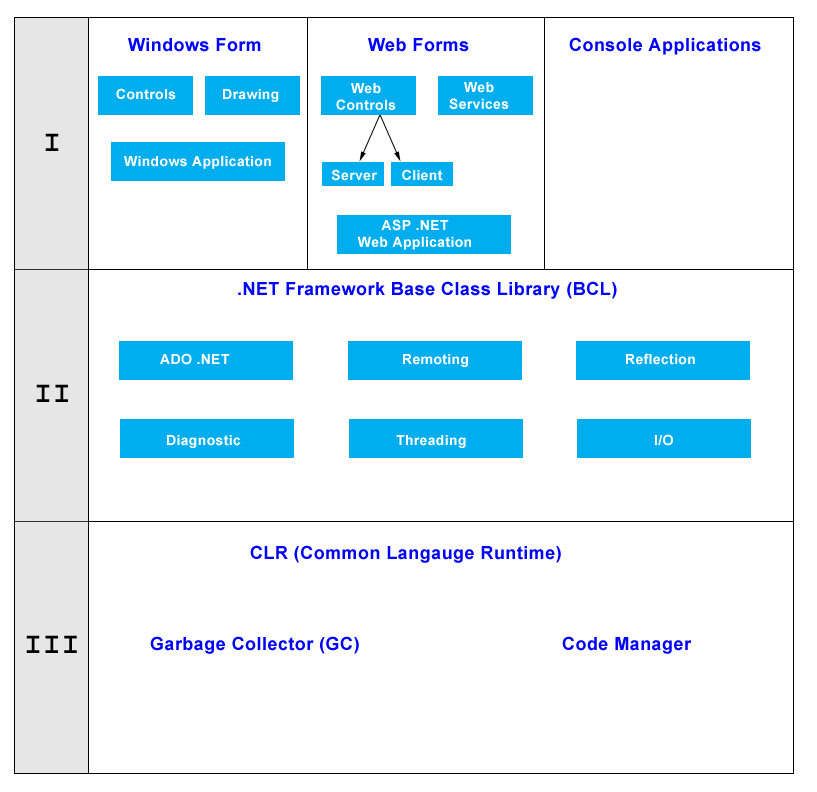

framework.gif
 

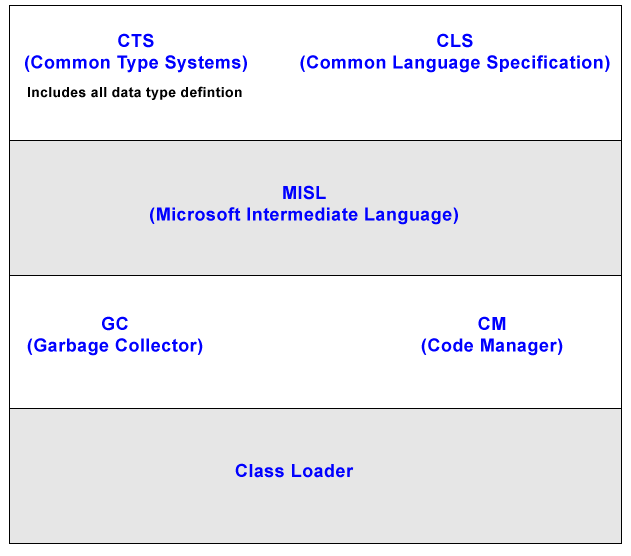
Architecture of CLR


CLR.gif

CLS (Common Language Specification)
 
It is a subset of CTS. All instruction is in CLS i.e. instruction of CTS is written in CLS.
 

Code Manager

 
Code manager invokes class loader for execution.
 
.NET supports two kind of coding
 
1) Managed Code
2) Unmanaged Code
 

Managed Code

 
The resource, which is with in your application domain is, managed code. The resources that are within domain are faster.
 
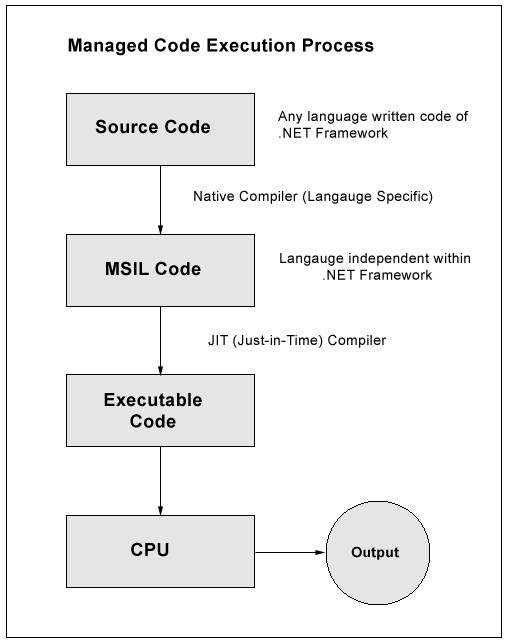
The code, which is developed in .NET framework, is known as managed code. This code is directly executed by CLR with help of managed code execution. Any language that is written in .NET Framework is managed code.
 
Managed code uses CLR which in turns looks after your applications by managing memory, handling security, allowing cross - language debugging, and so on.
managed_code.gif
 
Unmanaged Code
 
The code, which is developed outside .NET, Framework is known as unmanaged code.
 
Applications that do not run under the control of the CLR are said to be unmanaged, and certain languages such as C++ can be used to write such applications, which, for example, access low - level functions of the operating system. Background compatibility with code of VB, ASP and COM are examples of unmanaged code.
 
Unmanaged code can be unmanaged source code and unmanaged compile code.
 
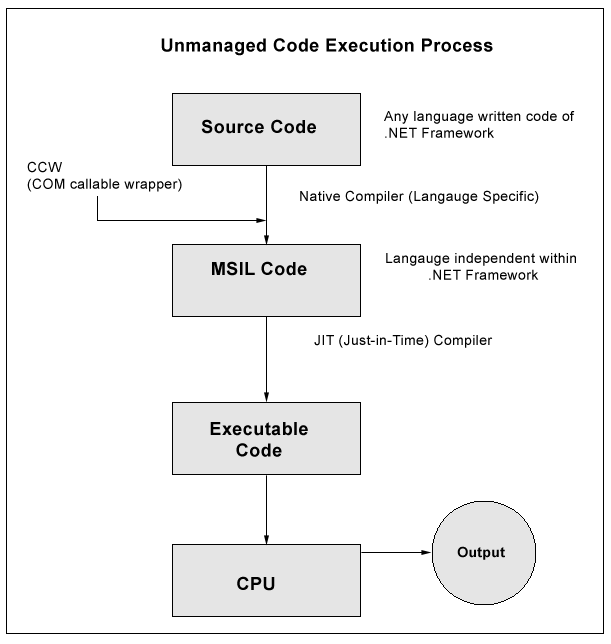
Unmanaged code is executed with help of wrapper classes.
 
Wrapper classes are of two types: CCW (COM callable wrapper) and RCW (Runtime Callable Wrapper).
 
Wrapper is used to cover difference with the help of CCW and RCW.

COM callable wrapper unmanaged code

unmanaged_code_COM.gif

Runtime Callable Wrapper unmanaged code
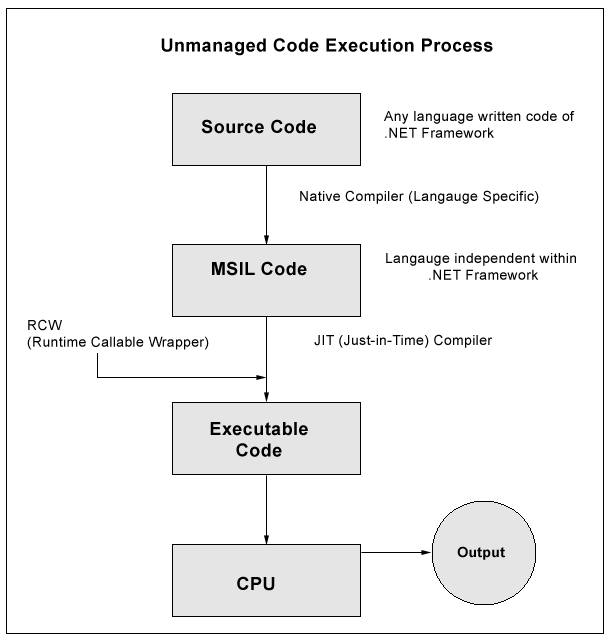
unmanaged_code_RCW.gif

Native Code

 
The code to be executed must be converted into a language that the target operating system understands, known as native code. This conversion is called compiling code, an act that is performed by a compiler.
 
Under the .NET Framework, however, this is a two - stage process. With help of MSIL and JIT.
 
MSIL (Microsoft Intermediate Language)
 
It is language independent code. When you compile code that uses the .NET Framework library, you don't immediately create operating system - specific native code.
 
Instead, you compile your code into Microsoft Intermediate Language (MSIL) code. The MSIL code is not specific to any operating system or to any language.
 
JIT (Just-in-Time)
 
Just - in - Time (JIT) compiler, which compiles MSIL into native code that is specific to the OS and machine architecture being targeted. Only at this point can the OS execute the application. The just - in - time part of the name reflects the fact that MSIL code is only compiled as, and when, it is needed.
 
In the past, it was often necessary to compile your code into several applications, each of which targeted a specific operating system and CPU architecture. Often, this was a form of optimization.
 
This is now unnecessary, because JIT compilers (as their name suggests) use MSIL code, which is independent of the machine, operating system, and CPU. Several JIT compilers exist, each targeting a different architecture, and the appropriate one will be used to create the native code required.
 
The beauty of all this is that it requires a lot less work on your part - in fact, you can forget about system - dependent details and concentrate on the more interesting functionality of your code.
 
JIT are of three types:
  1. Pre JIT
  2. Econo JIT
  3. Normal JIT
Pre JIT
 
It converts all the code in executable code and it is slow
 

Econo JIT

 
It will convert the called executable code only. But it will convert code every time when a code is called again.
 

Normal JIT

 
It will only convert the called code and will store in cache so that it will not require converting code again. Normal JIT is fast.
 

Assemblies

 
When you compile an application, the MSIL code created is stored in an assembly. Assemblies include both executable application files that you can run directly from Windows without the need for any other programs (these have a .exe file extension), and libraries (which have a .dll extension) for use by other applications.
 
In addition to containing MSIL, assemblies also include meta information (that is, information about the information contained in the assembly, also known as metadata) and optional resources (additional data used by the MSIL, such as sound files and pictures).
 
The meta information enables assemblies to be fully self - descriptive. You need no other information to use an assembly, meaning you avoid situations such as failing to add required data to the system registry and so on, which was often a problem when developing with other platforms.
 
This means that deploying applications is often as simple as copying the files into a directory on a remote computer. Because no additional information is required on the target systems, you can just run an executable file from this directory and (assuming the .NET CLR is installed) you're good to go.
 
Of course, you won't necessarily want to include everything required to run an application in one place. You might write some code that performs tasks required by multiple applications. In situations like that, it is often useful to place the reusable code in a place accessible to all applications. In the .NET Framework, this is the Global Assembly Cache (GAC). Placing code in the GAC is simple - you just place the assembly containing the code in the directory containing this cache.
 

Garbage Collection (GC)

 
One of the most important features of managed code is the concept of garbage collection. This is the .NET method of making sure that the memory used by an application is freed up completely when the application is no longer in use.
 
Prior to .NET this was mostly the responsibility of programmers, and a few simple errors in code could result in large blocks of memory mysteriously disappearing as a result of being allocated to the wrong place in memory. That usually meant a progressive slowdown of your computer followed by a system crash.
 
.NET garbage collection works by inspecting the memory of your computer every so often and removing anything from it that is no longer needed. There is no set time frame for this; it might happen thousands of times a second, once every few seconds, or whenever, but you can rest assured that it will happen.
 
Will try to explain the processing in terms of C# code which is written using .NET Framework.
 
Step 1- Application code is written using a .NET - compatible language C#.

 
fig1.gif

Step 2 -
Code is compiled into MSIL, which is stored in an assembly (see Figure 1 - 2).
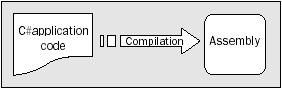
 
fig2.gif

Step 3 -
When this code is executed (either in its own right if it is an executable or when it is used from other code), it must first be compiled into native code using a JIT compiler.
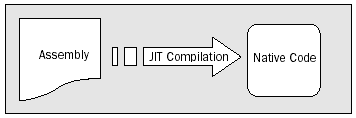
 
fig3.gif

Step 4 -
The native code is executed in the context of the managed CLR, along with any other running applications or processes.
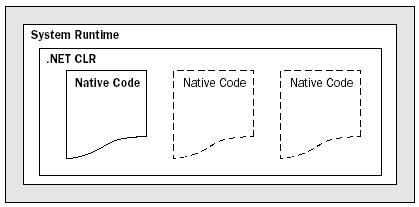
 

fig4.gif
 
Note:  One additional point concerning this process. The C# code that compiles into MSIL in step 2 needn't be contained in a single file. It's possible to split application code across multiple source code files, which are then compiled together into a single assembly. This extremely useful process is known as linking.
 
This is because it is far easier to work with several smaller files than one enormous one. You can separate out logically related code into an individual file so that it can be worked on independently and then practically forgotten about when completed.
 
This also makes it easy to locate specific pieces of code when you need them and enables teams of developers to divide up the programming burden into manageable chunks, whereby individuals can check out pieces of code to work on without risking damage to otherwise satisfactory sections or sections other people are working on.
 

Conclusion

 
I hope that this article would have helped you in understanding .NET Framework and have built a simple and clear understanding of .NET.
 
Have taken some definition and lines from some references for technically explanation and understanding. Your feedback and constructive contributions are welcome.  Please feel free to contact me for feedback or comments you may have about this article.

25 important WCF interview questions


What are the important principles of SOA (Service oriented Architecture)?

What are ends, contract, address, and bindings?

Which specifications does WCF follow?

What are the main components of WCF?

Explain how Ends, Contract, Address, and Bindings are done in WCF?

What is a service class?

What is a service contract, operation contract and Data Contract?

What are the various ways of hosting a WCF service?

How do we host a WCF service in IIS?

What are the advantages of hosting WCF Services in IIS as compared to self-hosting?

What are the major differences between services and Web services?

What is the difference WCF and Web services?

What are different bindings supported by WCF?

Which are the various programming approaches for WCF?

What is one-way operation?

Can you explain duplex contracts in WCF?

How can we host a service on two different protocols on a single server?

How can we use MSMQ bindings in WCF?

Can you explain transactions in WCF?

What different transaction isolation levels provided in WCF?

Can we do transactions using MSMQ?

Can we have two-way communications in MSMQ?

What are Volatile queues?

What are Dead letter queues?

What is a poison message?

WPF Web Application


http://msdn.microsoft.com/en-us/library/aa970060.aspx


http://msdn.microsoft.com/en-us/library/ms752346.aspx

  Here are the few steps that you should follow,

    1. Create an WPF Browser application.
    2. Add MIME type to the IIS before publishing. Details can be found in this page
         http://msdn.microsoft.com/en-us/library/ms752346.aspx
    3. Publish XBAP application to IIS and set the security level to full trust and create a certificate for Internet explorer. Details can  be  found in this page,
    http://blogs.microsoft.co.il/blogs/maxim/archive/2008/03/05/wpf-xbap-as-full-trust-application.aspx
   4. After this verify whether you can see it IE.
  
    5. Once these steps are completed try adding <Iframe> inside you aspx page and set the src attribute to the iis xbap path
             <iframe src="http://xxxxx/XBAPinASP/XBAPinASP.xbap" height="100%" width="100%"></iframe>


    Yes we can do that with the help of XBAP(XAML Browser Application).XAML browser applications (XBAPs) combines features of both Web applications and rich-client applications. Have a look at this site for more information.

http://msdn.microsoft.com/en-us/library/aa970060.aspx

ASP.NET Page Life Cycle Events

protected void page_PreInit(object sender, EventArgs e)
    { }
    protected void Page_Init(object sender, EventArgs e)
    { }
    protected void Page_InitComplete(object sender, EventArgs e)
    { }
    protected override void OnPreLoad(EventArgs e)
    { }

    protected void Page_Load(object sender, EventArgs e)
    {   }
    protected void Page_LoadComplete(object sender, EventArgs e)
    { }
    protected override void OnPreRender(EventArgs e)
    { }
    protected override void OnSaveStateComplete(EventArgs e)
    { }
    protected void Page_UnLoad(object sender, EventArgs e)
    { }


When a page request is sent to the Web server, the page is run through a series of events during its creation and disposal. In this article, I will discuss in detail the ASP.NET page life cycle Events
 (1) PreInit The entry point of the page life cycle is the pre-initialization phase called “PreInit”. This is the only event where programmatic access to master pages and themes is allowed. You can dynamically set the values of master pages and themes in this event. You can also dynamically create controls in this event. 
EXAMPLE : Override the event as given below in your code-behind cs file of your aspx page
using System;
using System.Collections.Generic;using System.Linq;using System.Web;using System.Web.UI;using System.Web.UI.WebControls; public partial class _Default : System.Web.UI.Page{    protected void Page_PreInit(object sender, EventArgs e)    {        //  Use this event for the following:          //  Check the IsPostBack property to determine whether this is the first time the page is being processed.        //  Create or re-create dynamic controls.        //  Set a master page dynamically.        //  Set the Theme property dynamically.           }
------------------------------------------------------------------------
(2)Init This event fires after each control has been initialized, each control's UniqueID is set and any skin settings have been applied. You can use this event to change initialization values for controls. The “Init” event is fired first for the most bottom control in the hierarchy, and then fired up the hierarchy until it is fired for the page itself.  
EXAMPLE : Override the event as given below in your code-behind cs file of your aspx page
protected void Page_Init(object sender, EventArgs e)
{// Raised after all controls have been initialized and any skin settings have been applied. Use this event to read or initialize control properties.}
 -------------------------------------------------------------------
(3)InitComplete Raised once all initializations of the page and its controls have been completed. Till now the viewstate values are not yet loaded, hence you can use this event to make changes to view state that you want to make sure are persisted after the next postback 
EXAMPLE : Override the event as given below in your code-behind cs file of your aspx page
protected void Page_InitComplete(object sender, EventArgs e)
{       // Raised by the  Page object. Use this event for processing tasks that require all initialization be complete. }
------------------------------------------------------------------------
(4)PreLoad Raised after the page loads view state for itself and all controls, and after it processes postback data that is included with the Request instance     
(1)Loads ViewState : ViewState data are loaded to controls
Note : The page viewstate is managed by ASP.NET and is used to persist information over a page roundtrip to the server. Viewstate information is saved as a string of name/value pairs and contains information such as control text or value. The viewstate is held in the value property of a hidden <input> control that is passed from page request to page request.     
(2)Loads Postback data : postback data are now handed to the page controls            
Note : During this phase of the page creation, form data that was posted to the server (termed postback data in ASP.NET) is processed against each control that requires it. Hence, the page fires the LoadPostData event and parses through the page to find each control and updates the control state with the correct postback data. ASP.NET updates the correct control by matching the control's unique ID with the name/value pair in the NameValueCollection. This is one reason that ASP.NET requires unique IDs for each control on any given page. 
EXAMPLE : Override the event as given below in your code-behind cs file of your aspx page
protected override void OnPreLoad(EventArgs e)
{        // Use this event if you need to perform processing on your page or control before the  Load event.        // Before the Page instance raises this event, it loads view state for itself and all controls, and then processes any postback data included with the Request instance.}
------------------------------------------------------------------------
(5)Load The important thing to note about this event is the fact that by now, the page has been restored to its previous state in case of postbacks. Code inside the page load event typically checks for PostBack and then sets control properties appropriately. This method is typically used for most code, since this is the first place in the page lifecycle that all values are restored. Most code checks the value of IsPostBack to avoid unnecessarily resetting state. You may also wish to call Validate and check the value of IsValid in this method. You can also create dynamic controls in this method.
 EXAMPLE : Override the event as given below in your code-behind cs file of your aspx page
protected void Page_Load(object sender, EventArgs e)
{        // The  Page calls the  OnLoad event method on the  Page, then recursively does the same for each child control, which does the same for each of its child controls until the page and all controls are loaded.        // Use the OnLoad event method to set properties in controls and establish database connections.}
------------------------------------------------------------------------
(6)Control (PostBack) event(s)ASP.NET now calls any events on the page or its controls that caused the PostBack to occur. This might be a button’s click event or a dropdown's selectedindexchange event, for example.These are the events, the code for which is written in your code-behind class(.cs file). 
EXAMPLE : Override the event as given below in your code-behind cs file of your aspx page
protected void Button1_Click(object sender, EventArgs e)
{        // This is just an example of control event.. Here it is button click event that caused the postback}
---------------------------------------------------------------------
(7)LoadComplete This event signals the end of Load. 
EXAMPLE : Override the event as given below in your code-behind cs file of your aspx page
protected void Page_LoadComplete(object sender, EventArgs e)
{        // Use this event for tasks that require that all other controls on the page be loaded.}
----------------------------------------------------------------------
(8)PreRender Allows final changes to the page or its control. This event takes place after all regular PostBack events have taken place. This event takes place before saving ViewState, so any changes made here are saved.For example : After this event, you cannot change any property of a button or change any viewstate value. Because, after this event, SaveStateComplete and Render events are called. 
EXAMPLE : Override the event as given below in your code-behind cs file of your aspx page
protected override void OnPreRender(EventArgs e)
{        // Each data bound control whose DataSourceID property is set calls its DataBind method.        // The PreRender event occurs for each control on the page. Use the event to make final changes to the contents of the page or its controls.}
-----------------------------------------------------------------------
(9)SaveStateComplete Prior to this event the view state for the page and its controls is set. Any changes to the page’s controls at this point or beyond are ignored.
EXAMPLE : Override the event as given below in your code-behind cs file of your aspx page
protected override void OnSaveStateComplete(EventArgs e)
{        // Before this event occurs,  ViewState has been saved for the page and for all controls. Any changes to the page or controls at this point will be ignored.        // Use this event perform tasks that require view state to be saved, but that do not make any changes to controls.}
------------------------------------------------------------------------
(10)Render This is a method of the page object and its controls (and not an event). At this point, ASP.NET calls this method on each of the page’s controls to get its output. The Render method generates the client-side HTML, Dynamic Hypertext Markup Language (DHTML), and script that are necessary to properly display a control at the browser.
 Note: Right click on the web page displayed at client's browser and view the Page's Source. You will not find any aspx server control in the code. Because all aspx controls are converted to their respective HTML representation. Browser is capable of displaying HTML and client side scripts. 
EXAMPLE : Override the event as given below in your code-behind cs file of your aspx page
// Render stage goes here. This is not an event
------------------------------------------------------------------------
(11)UnLoad This event is used for cleanup code. After the page's HTML is rendered, the objects are disposed of. During this event, you should destroy any objects or references you have created in building the page. At this point, all processing has occurred and it is safe to dispose of any remaining objects, including the Page object. Cleanup can be performed on- 
     (a)Instances of classes i.e. objects
     (b)Closing opened files
     (c)Closing database connections. 
EXAMPLE : Override the event as given below in your code-behind cs file of your aspx page
protected void Page_UnLoad(object sender, EventArgs e)   
{        // This event occurs for each control and then for the page. In controls, use this event to do final cleanup for specific controls, such as closing control-specific database connections.        // During the unload stage, the page and its controls have been rendered, so you cannot make further changes to the response stream.           //If you attempt to call a method such as the Response.Write method, the page will throw an exception.    }